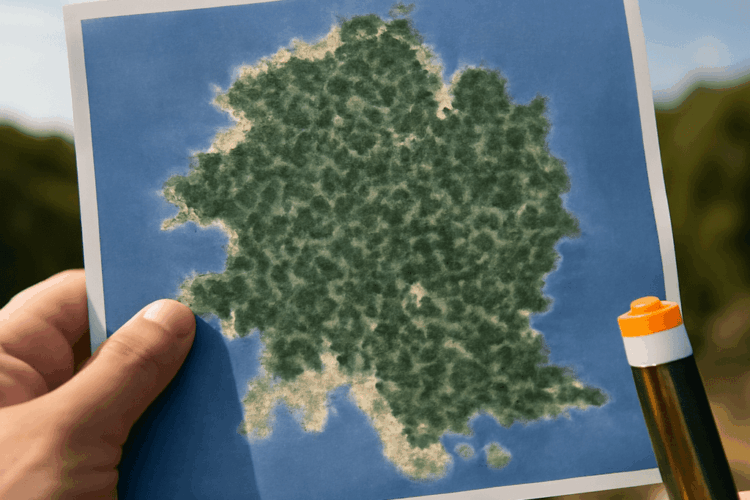
A seed map predicts where your world generates structures; a server map shows terrain the server has actually generated and rendered. If you want to find a stronghold or locate an End City, choose the first. If you want to see a friend’s base and roads, look for a server-hosted map instead.
Both approaches can save you a long walk, but they need different information. Here is how to use them, including what their coordinates can—and cannot—tell you. Tool details were checked November 9, 2026.
Start With Your World’s Details
A seed is the value Minecraft uses to generate a world. Before opening a map seed tool, collect the seed, edition, version and dimension. On a phone or tablet you normally play Bedrock Edition; Java Edition is a separate PC edition. The Overworld contains strongholds; End cities appear in the End. A tool’s dimension selector changes which world layer you are looking at.
For a worked example, suppose your world uses seed 123456789, Bedrock Edition 1.21.50, and your position is X 240, Y 70, Z -160 in the Overworld. Those are example inputs, not a claim that a particular structure exists there. X and Z describe horizontal position; Y is height. Negative coordinates matter, so copy the minus sign.
In Bedrock, turn on Show Coordinates under world settings; Java players can use the F3 debug screen. Minecraft’s coordinate guide explains both. For an existing world, check its settings for the seed; on a server, ask the owner if you cannot access it. The version that generated the area matters: older worlds may contain regions created under different versions.
Build a World Preview
Chunkbase Seed Map offers a browser-based minecraft map from seed for supported Java and Bedrock versions. Enter 123456789, select Bedrock 1.21.50, choose the Overworld, and move the map to X 240, Z -160. Enable the structure icons you want and tap one for its details. On a touchscreen, drag to move and pinch to zoom.
The map MC players see here is a prediction of world generation, not a live view of changed blocks. A seed-based Minecraft map will not show a house you built or a village someone dismantled. Select the version that generated the area you are investigating; mods, add-ons and data packs that change generation can make the prediction diverge. The app also notes that some structures can be missing or displaced.
Find the Stronghold and Its Portal
Chunkbase’s Stronghold Finder uses the same seed and version inputs. Select the Overworld and note an icon’s X and Z. This stronghold locator points you toward the underground structure; it does not provide the exact portal-room location. Search carefully at the target, using safe stairs rather than digging straight down. The tool may omit Y for strongholds.
An end portal locator is often a label for this same first step: finding the stronghold. An ender portal finder may likewise lead to the structure rather than the portal frame itself. Once inside, explore its corridors to find the room. Bring Eyes of Ender to activate the frame; a map cannot tell you that another player has already altered it.
If commands are allowed, Minecraft’s documented /locate structure minecraft:stronghold gives the nearest stronghold’s coordinates from your position. This in-game way to find a stronghold needs command permission, but no separate seed entry. On a server, follow its rules; in a Bedrock single-player world, enabling cheats has consequences for achievements.
End City Finder: Check the Outer Islands
Switch the seed map to the End and enable icons to find End cities. An end city finder predicts where cities generate, so use it to plan a route across the outer islands. You must first reach the End in the game; a browser map does not transport you there. Write down the destination’s X and Z, bring blocks and supplies, and watch your footing around the void.
An end city locator answers a different question from an end ship finder: the first identifies a city, while the second helps narrow your search for a city with a ship. Not every city has one. Inspect the icon details for the supported edition and version, then confirm in the world before committing to a long trip. Chunkbase reports improvements to End City and ship accuracy for both editions, but generated structures can still differ from predictions.
View a Server’s Actual World
A minecraft server map viewer such as Dynmap displays a rendered view of a compatible server’s generated terrain. If the owner has installed it and shared its address, open that address in a browser; you do not need to enter the seed. Visibility, player markers and accessible worlds depend on the server’s configuration.
Dynmap renders generated chunks, not imaginary terrain beyond them. An empty area may mean it has not been generated or rendered yet. Installation and rendering require server administration; a regular player cannot turn an ordinary server address into a live map merely by entering it on a website. The server owner can check the plugin’s setup and permissions.
Use a seed map to scout structures when you know the seed and generation settings. Use the in-game command if you have permission and need the nearest stronghold. Choose a server map when the owner provides one and you want to see the world people have actually built.